To utilize the Gift Card feature, you must download the Lucky Fins App from your App Store!
Purchasing a Card from Your App
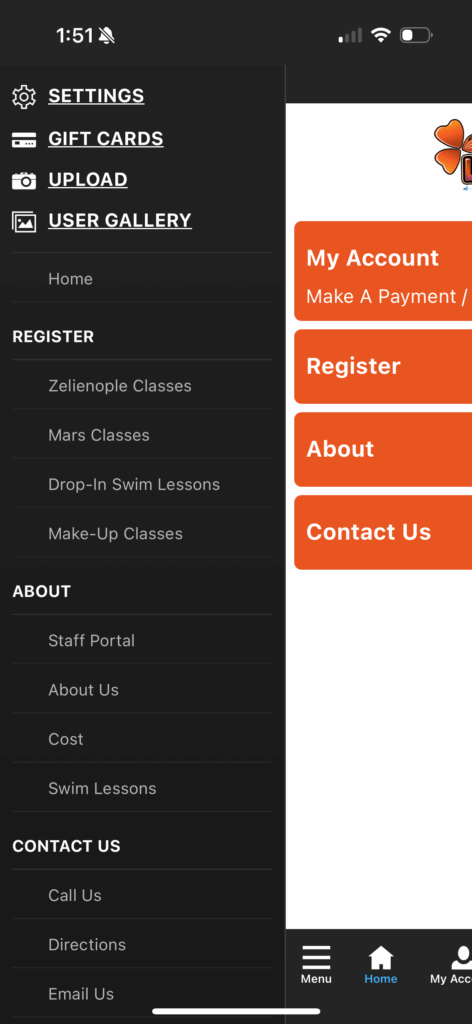
To purchase a gift card in your app, click the menu icon at the bottom left. This will open the app menu. Then click the Gift Cards menu item.
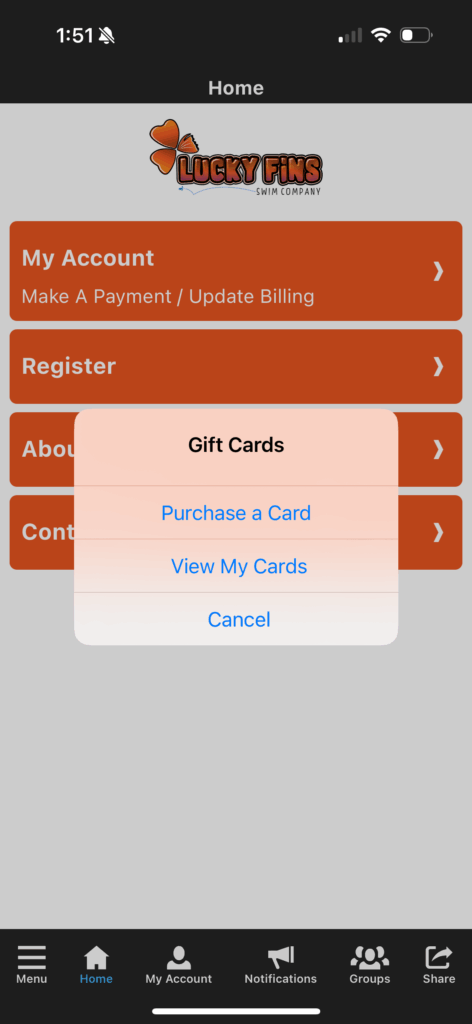
Then click Purchase a Card
This will show all of the cards you have created that are set the “Show in the App”.
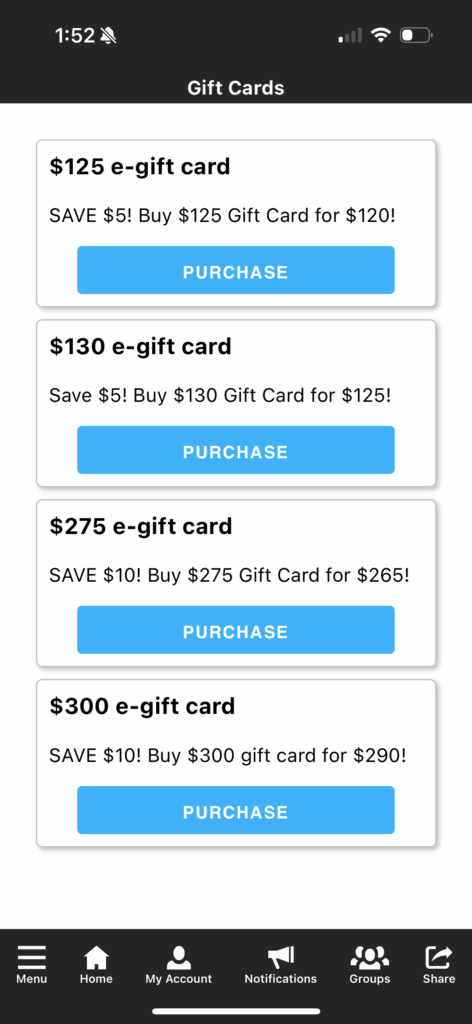
Clicking Purchase will take you to a review page.
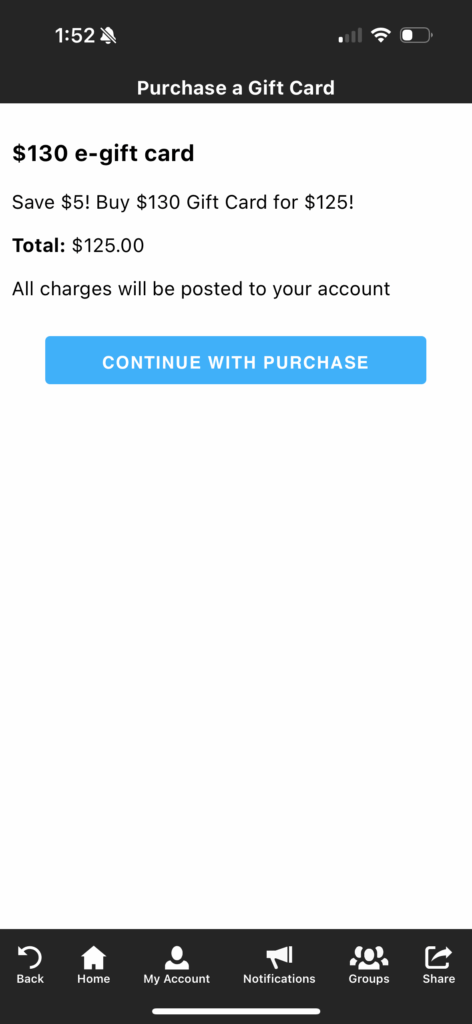
Clicking Continue With Purchase will apply a charge to the family account. If the user isn’t logged into the parent portal in the app, it will ask them to do so.
Viewing Purchased Cards and Redeeming a Card from Your App
To view previously purchased cards, click the Gift Cards menu item in the app and choose View My Cards.
To redeem the card, click the SHARE/REDEEM button, then select Redeem. Redeeming the card will place a credit for the Redeem Amount on the family in Jackrabbit.
Once you have redeemed your card, it will show as redeemed under My Gift Cards.
Sharing a Card
To share a previously purchased gift card, click the SHARE/REDEEM button, then select Give.
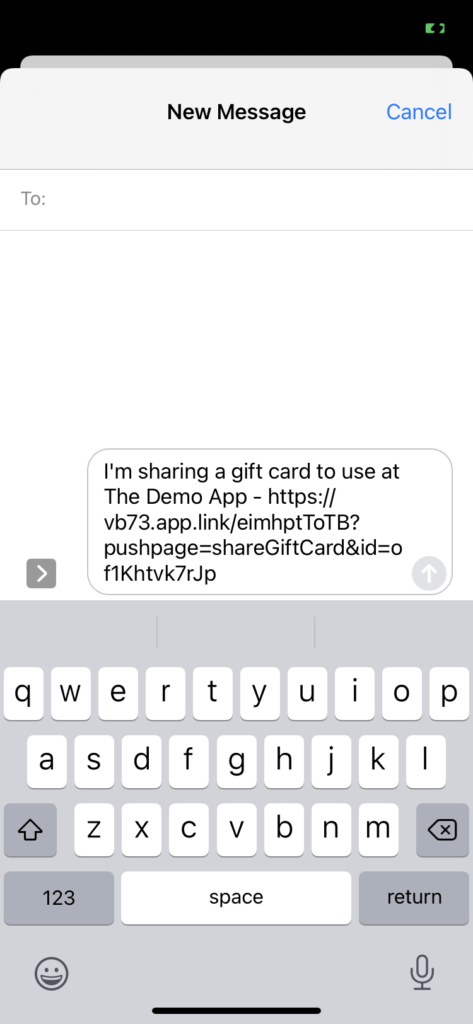
This will give you the option to share the card with another by text or email. In the example below, we’re sharing our card via text. The share text will include a deep link that, when clicked by the recipient, will take them to the app store to download your app. Once they open the app, the card will become theirs. To redeem the card, the new owner will need to login to the parent portal in the app.